
Study Mode pauses games and entertainment on CuriOra Kids during hours you choose. Apps marked educational (or always allowed) can stay open.
You’ll need
- Parent signed in · correct child selected
- Kids paired with Accessibility + Usage access (setup guide)
- Premium or Trial — Free doesn’t include study schedules
Step 1 — Open Limits
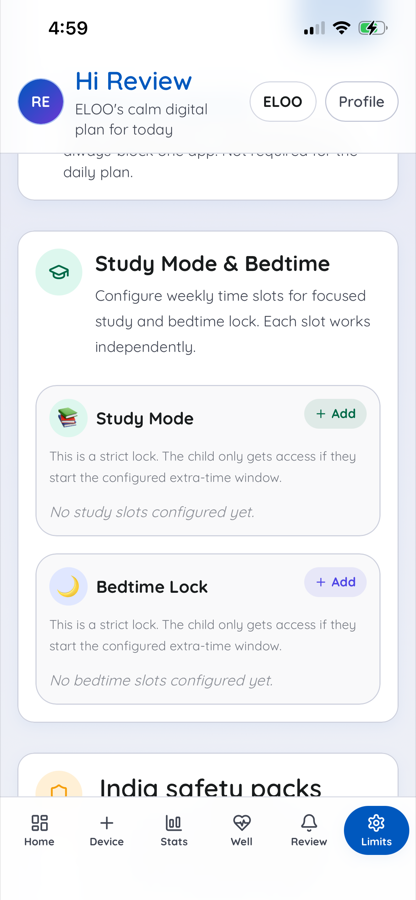
- Tap Limits (bottom bar).
- Scroll to Study Mode & Bedtime.
- Next to Study Mode, tap + Add.
Step 2 — Save a study slot
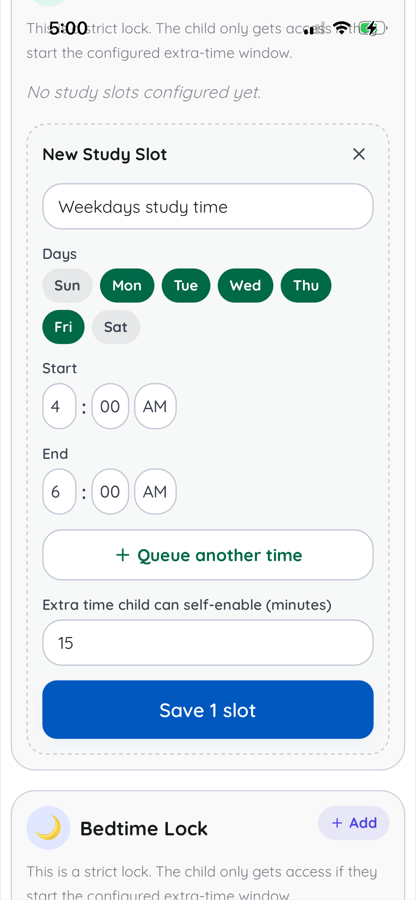
- Optional name (e.g. Weekdays study).
- Pick days, then Start and End.
- Optional: Extra time minutes (child can start once per window; use 0 for none).
- Optional second window: + Queue another time, then adjust times.
- Tap Save 1 slot (or Save N slots).
Same days + same start–end can’t be saved twice. Turn off a slot later with its checkbox, or delete it.
What your child sees
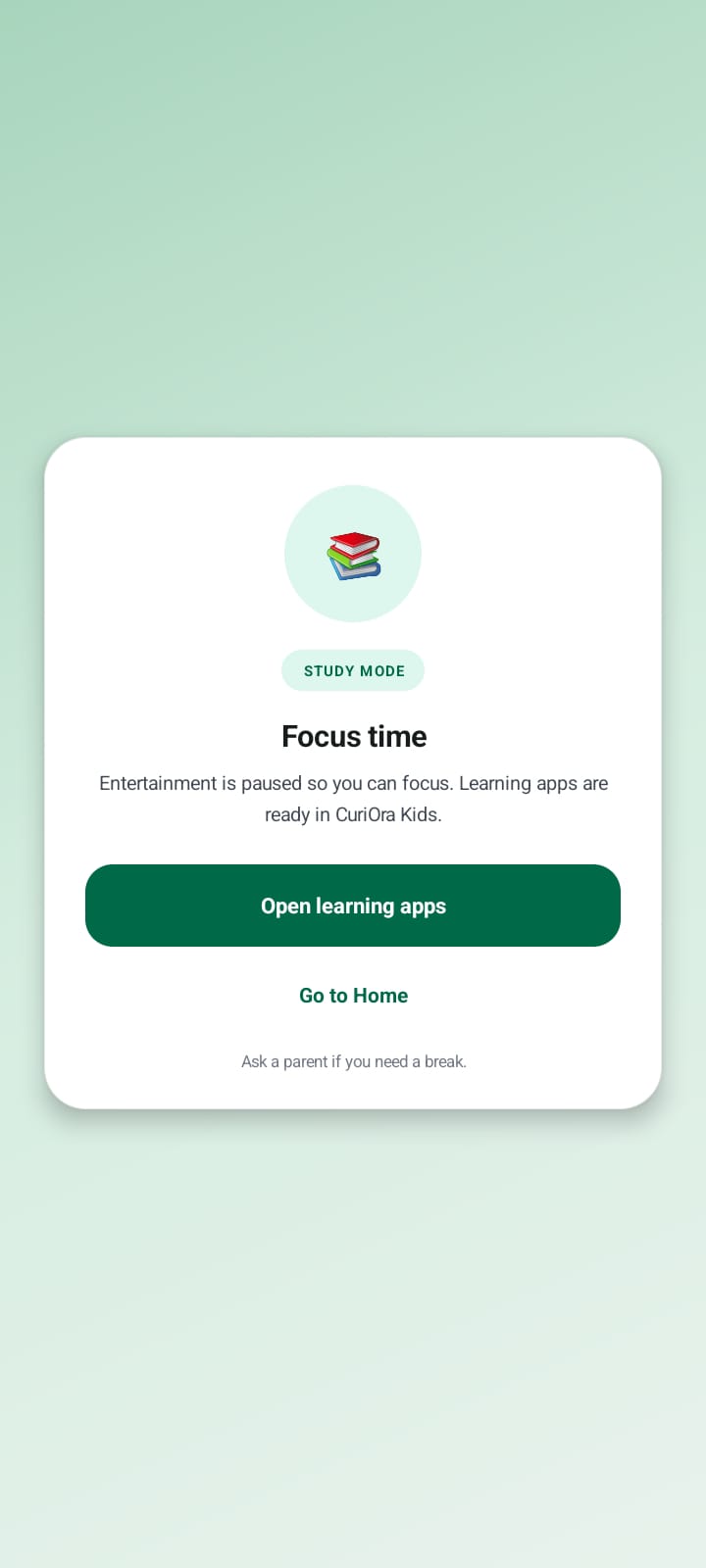
- Entertainment pauses · allowed learning apps can stay usable.
- Open learning apps / Go to Home on the block screen.
- Extra minutes (if set): once per study window only.
Study vs daily limit
- Daily limit — total play minutes for the day.
- Study Mode — clock windows (e.g. 4–6 PM), even if minutes remain.
If it’s not working
- Can’t add slots → upgrade: Plans
- Apps still open → Kids paired, Accessibility + Usage still on.
- Wrong time → child’s phone local time; check AM/PM and days.
- Extra time used → once per window; next window / next day resets.
Related
Stuck? support@curiora.in